


How to grant a PPC agency access to Google Ads
Granting a PPC agency access to your marketing tools is key to successful ad campaign management. Every platform has its own specific process. Below, you’ll find a guide on how to do it.
You can revoke access for a PPC agency (and that includes me) at any time. Just make sure you don’t lose any additional features the agency provided that might be tied to that access. In my case, this primarily involves the bulk cost report for PPC systems and other ongoing reports for evaluating key metrics (KPI).
How to grant access to Google Ads (GAads)
The service is used to create ads for Google’s Search Network and Display Network.
- Send me your customer ID. You can find this number in the top right corner of the Google Ads interface, right under your email address. It’s a ten-digit number in the XXX-XXX-XXXX format.
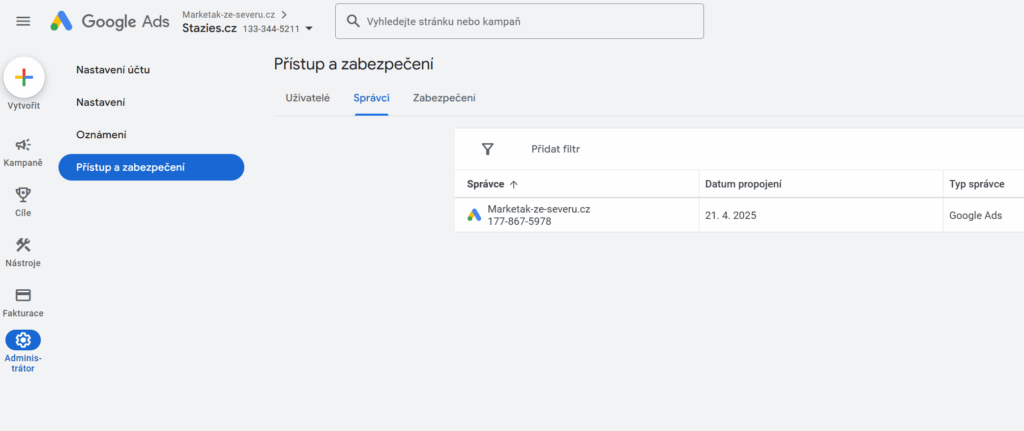
- Wait for the email or approve it directly. In the navigation menu at https://ads.google.com/, click Tools and settings ⚙️ at the top and then select Access and security under the Setup section.
- Adding access. In the Admin section, you’ll see a request from the PPC agency asking for a link. Just click the approve button.
How to grant access to Google Analytics 4 (GA4)
The service lets me analyze your traffic, track key metrics, and compare conversion attribution across ad platforms and organic traffic sources.
- Go to your Google Analytics 4 account. In the bottom left corner, click on Admin ⚙️.
- Access settings. In the Account or Property section, select Access Management. I recommend granting access at the Account level so I can see all the data and adjust the settings at the same time.
- Adding a user. Click the blue button with the + sign and then select Add user.
- Enter your email address. Enter the email address, [email protected].
- Permission settings. Grant the necessary permissions. For an agency, the Editor or Administrator role is ideal. An Editor can adjust settings, create reports, and modify conversion settings. An Administrator has full control, including measurement setup, which allows me to fix any potential errors.
- Granting access. Click Add. The agency will now receive an invitation email granting them access.

How to grant access to Google Tag Manager (GTM)
This service is primarily used to deploy tracking and targeting codes for various PPC and analytics systems. I set this up for my clients, which allows me to evaluate campaigns and improve targeting.
- Go to Google Tag Manager. In the top menu, click on Admin ⚙️.
- Container access. Select User Management under Container.
- Adding a user. Click the blue button with the + sign and select Add users.
- Enter the email and permissions. Enter the email address [email protected].
- Permission settings. For my needs, the Publish role is ideal, as it allows me to create, edit, and publish tags, triggers, and variables. Select User and then under Container permissions, choose Publish.
- Confirmation. Click Add in the top right corner.
How to grant access to Google Merchant Center (GMC)
Merchant Center is where your product information lives. It’s strictly for e-commerce projects that handle online sales. Merchant Center allows you to “feed” this product data into Google services and use it for your advertising.
- Log in to Google Merchant Center. Click the gear icon⚙️ in the top right corner and then select People and access.
- Adding a user. In the People section, click Add access.
- Enter the email address. Enter the email address [email protected] and select Add user.
- Access settings. Choose the access level. Administrator is the ideal choice, as it allows you to manage products, data sources, and account settings.
- Saving the changes. Click Save or Add. The agency will receive an invitation email.
How to grant access to Google Search Console (GSC)
The service is the main hub for analyzing your organic / unpaid search presence on Google. It’s a vital source of information on unpaid website traffic as well as the search queries users are using.
- Go to Search Console. In the top left corner, select the website you want to grant access to. It’s best to use the domain property in the format your-domain.com (without the https or http prefix).
- Settings. Click Settings ⚙️ in the bottom-left navigation menu
- Ownership management. In the Settings section, select Users and permissions.
- Adding a user. Click on Add user.
- Email and permission settings. Enter the email address [email protected] and select the permission level. The Full level is ideal, as it gives me unlimited access to data and allows me to link Google services together.
- Confirmation. Click Add.
How to grant access to Google My Business (Google Business Profile)
- Sign in to Google. Go to Google Search and search for your business name.
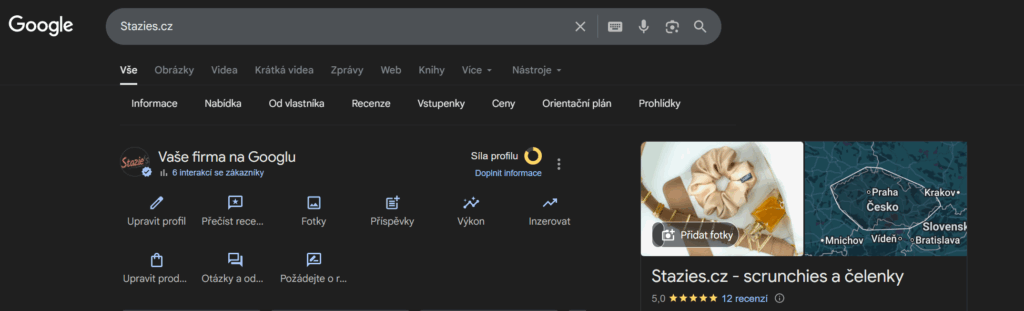
- Accessing the settings. Click the three vertical dots located next to “Profile strength” and then on Users and access.
- Adding a user. In the Access section, click Add.
- Enter the email. Enter the email address [email protected].
- Role setup. Select a role. The ideal choice is Manager, which allows me to link the profile with Google Ads and display your reviews in your ads.
- Confirmation. Click Invite.