

Measuring R+ reservations from Previo: The key to PPC optimization for hotels
Website tracking is crucial for hotels!
The Problem: Accommodation providers need to know which marketing channels are driving actual bookings, not just visits. This helps when deciding where to allocate your advertising budget.
This article is primarily for hoteliers who use the Previo booking form on their own website.
The Solution: Utilizing native events sent from the Previo R+ booking form to Google Tag Manager (GTM) via the dataLayer.
What we’ll cover: Setting up GTM to track key events in line with GA4 standards and preparing tracking for PPC systems (Google Ads, Sklik, Meta Ads).
Bonus – GTM template!
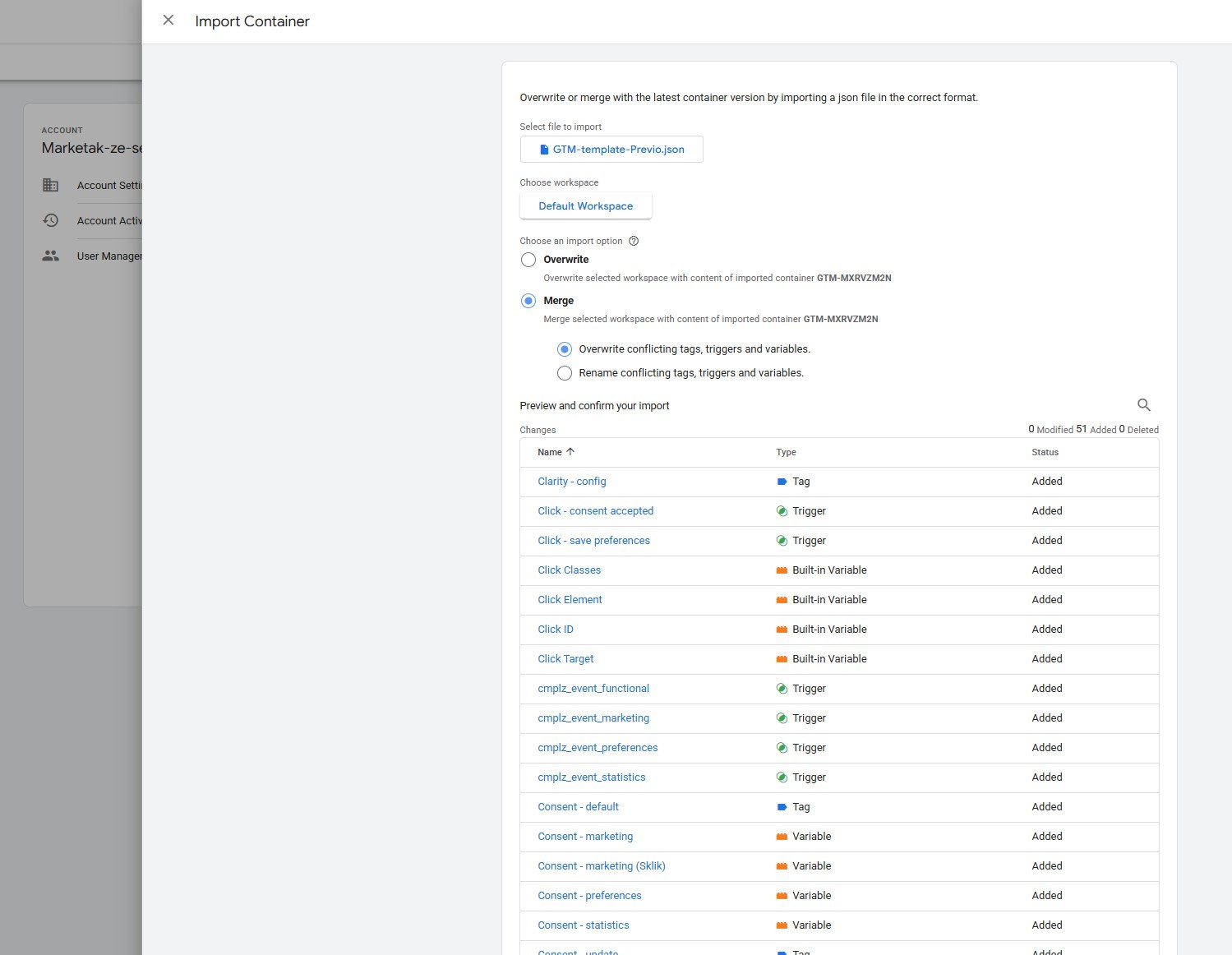
Don’t want to spend hours setting up GTM for your hotel but still want to give it a go yourself? Or do you just want to save time? Drop me a line and I’ll send you an export of a universal GTM container you can use for your project. It also includes tags for consent management, which you can use as a starting point for your own setup of user cookie consent, as seen in this article.
1. How Previo R+ communicates with your website (Technical context)
iframe and dataLayer: The Previo booking form on your website works as an iframe, which is isolated; normally, these iframe forms don’t send any data, let alone allow Google Tag Manager or GA4 to track them in any way. However, this form is ready for it and sends important data to the parent page via
dataLayer.Event semantics (E-commerce standard): dataLayer is a layer that GTM can read natively, and the booking form sends user events using standard GA4 E-commerce semantics (e.g.,
view_item_list,add_to_cart,purchase). This simplifies the setup for Google Analytics 4 as well as for other systems.Event example: The
purchaseevent signals a successful booking.
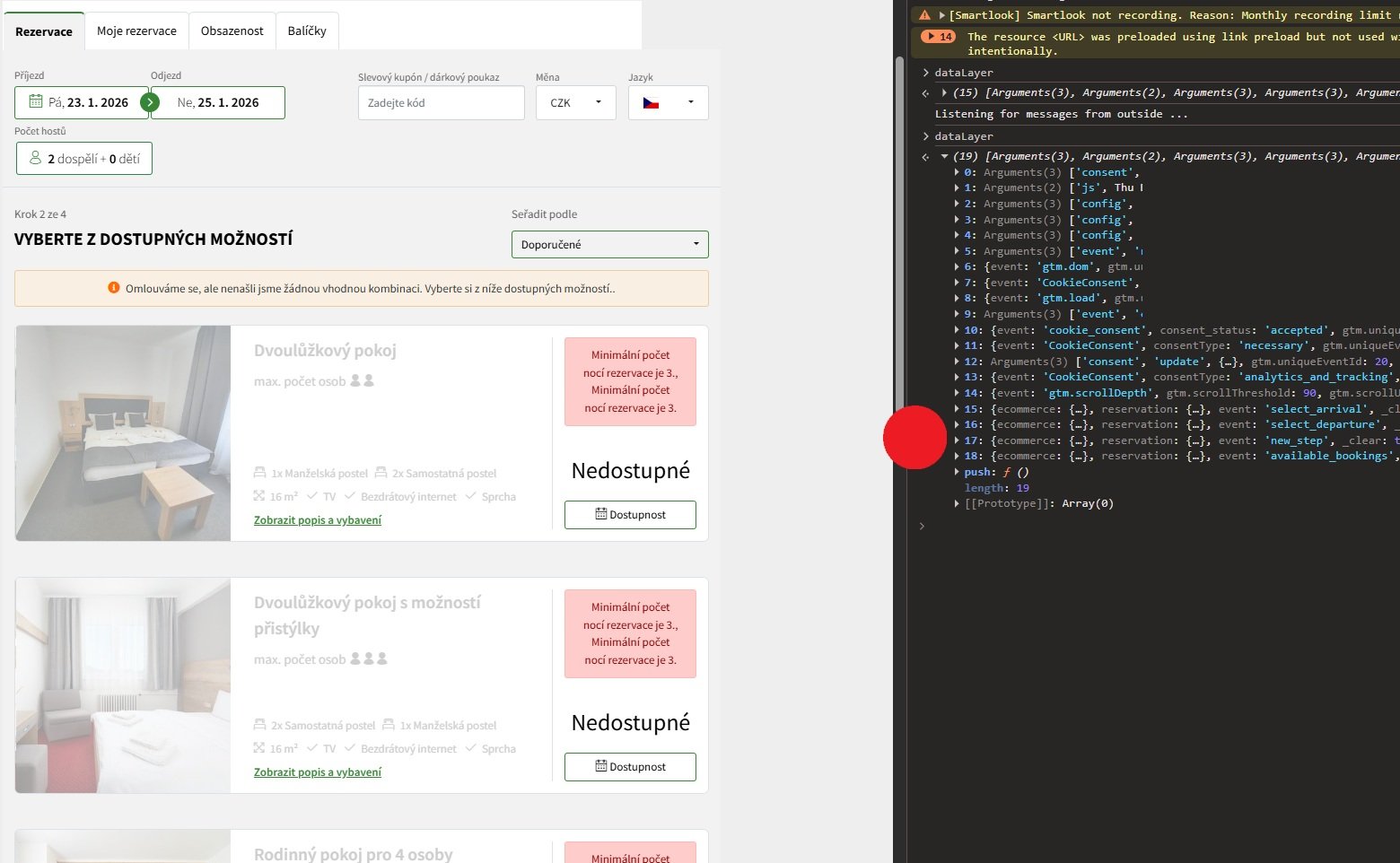
In the image below, you can see the iframe form of one of the accommodation providers and the data sent by the form to the dataLayer (red dot).
2. Tracking setup in Google Tag Manager (GTM)
A. Creating a Trigger to capture events
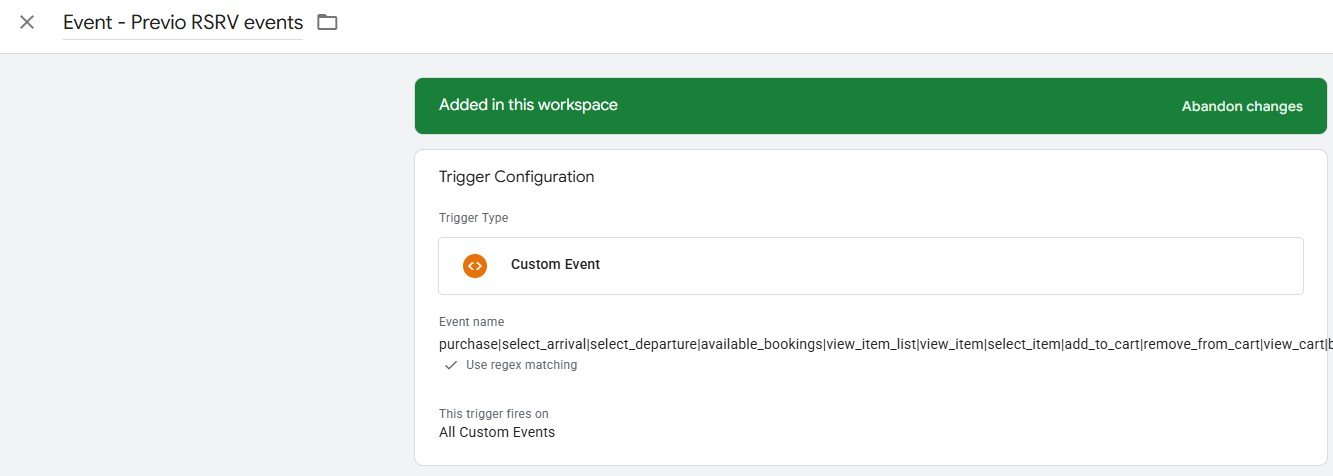
In GTM, thanks to the booking form integration, you can set up standard tracking just like you would for an e-shop. However, the booking form comes with some extra variables and events. If you want to track all events in GA4 at once, there’s nothing easier than creating a single Trigger that covers all booking form events with one condition:
- Trigger Type: Custom Event.
- Using REGEX: Utilizing a smart rule for a single Trigger that captures all key events:
- Event Name:
purchase|select_arrival|select_departure|available_bookings|view_item_list|view_item|select_item|add_to_cart|remove_from_cart|view_cart|begin_checkout|add_payment_info|payment_success|start_checkin|payment_failed|generate_lead`">$`purchase|select_arrival|select_departure|available_bookings|view_item_list|view_item|select_item|add_to_cart|remove_from_cart|view_cart|begin_checkout|add_payment_info|payment_success|start_checkin|payment_failed|generate_lead- REGEX: Keep the “Use regular expression” (Matches Regex) option checked.
- Goal: This single Trigger will be used to fire all subsequent tags.
B. Creating DataLayer variables
Variables (Data Layer Variables): Setup for extracting key data for GA4 and PPC conversions:
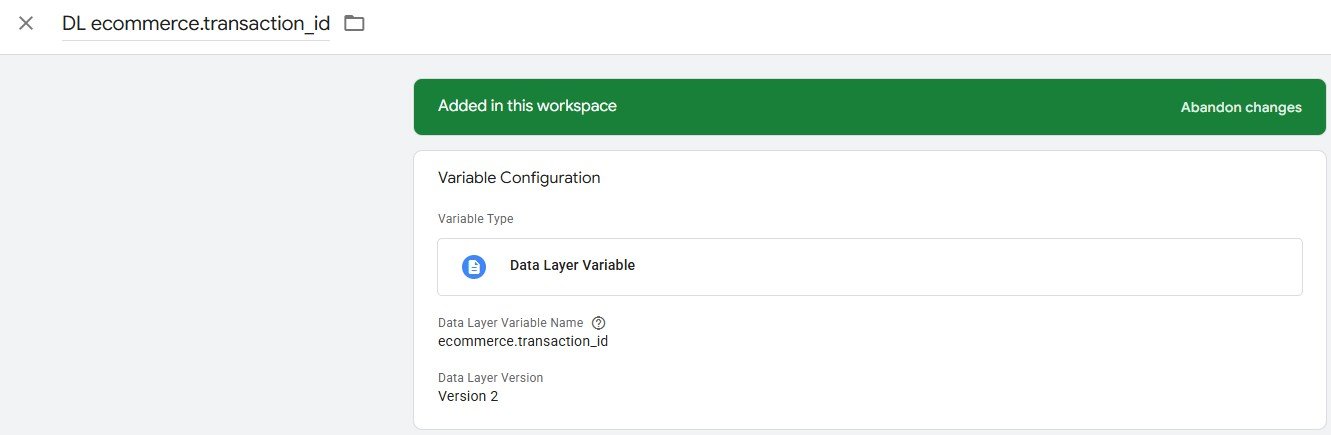
ecommerce.transaction_id(Transaction ID)ecommerce.value(Booking value/Revenue)ecommerce.currency(Currency)- and many others
Important: Previo sends this data, which allows us to get the conversion value—something that’s critical for optimizing PPC systems (e.g., in Google Ads Smart Bidding).
GA4 can usually pull the data structure on its own, but you’ll still need to set up some variables manually. PPC systems will require manual variable configuration.
3. Tag implementation (Tracking in systems)
A. Google Analytics 4 (GA4)
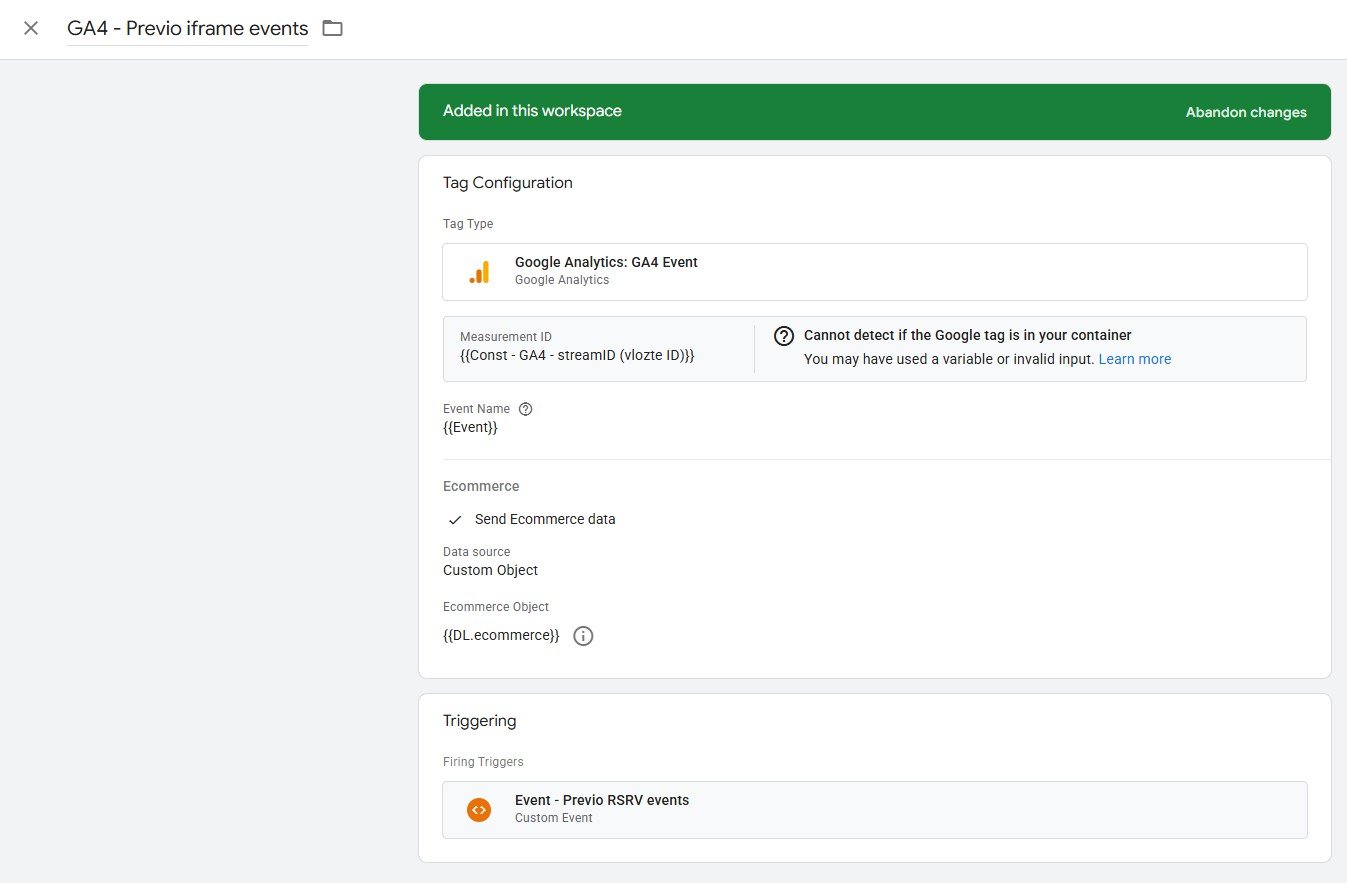
GA4 Event Tag: To capture the entire funnel, you basically only need one tag that fires on the trigger from point 2.A. Just add the dataLayer variables to the tag and boom, you’re all set.
B. Google Ads (Conversions)
Google Ads Conversion Tracking Tag: To collect conversions, you need to create a
purchaseevent and a tag that sends conversion data (including value) to Google Ads. Here, you’ll use the custom variables created in point 2.B.
C. Sklik (Conversions)
Custom HTML Tag: To collect conversions, you need to create a
purchaseevent and a tag that sends conversion data (including value) to Google Ads. Here, you’ll use the custom variables created in point 2.B. But don’t forget to integrate consent (user cookie consent), otherwise Sklik will just toss the collected data.
D. Meta (Conversions)
Custom HTML Tag: To collect conversions, you need to create a
purchaseevent and a tag that sends conversion data (including value) to Google Ads. Here, you’ll use the custom variables created in point 2.B.
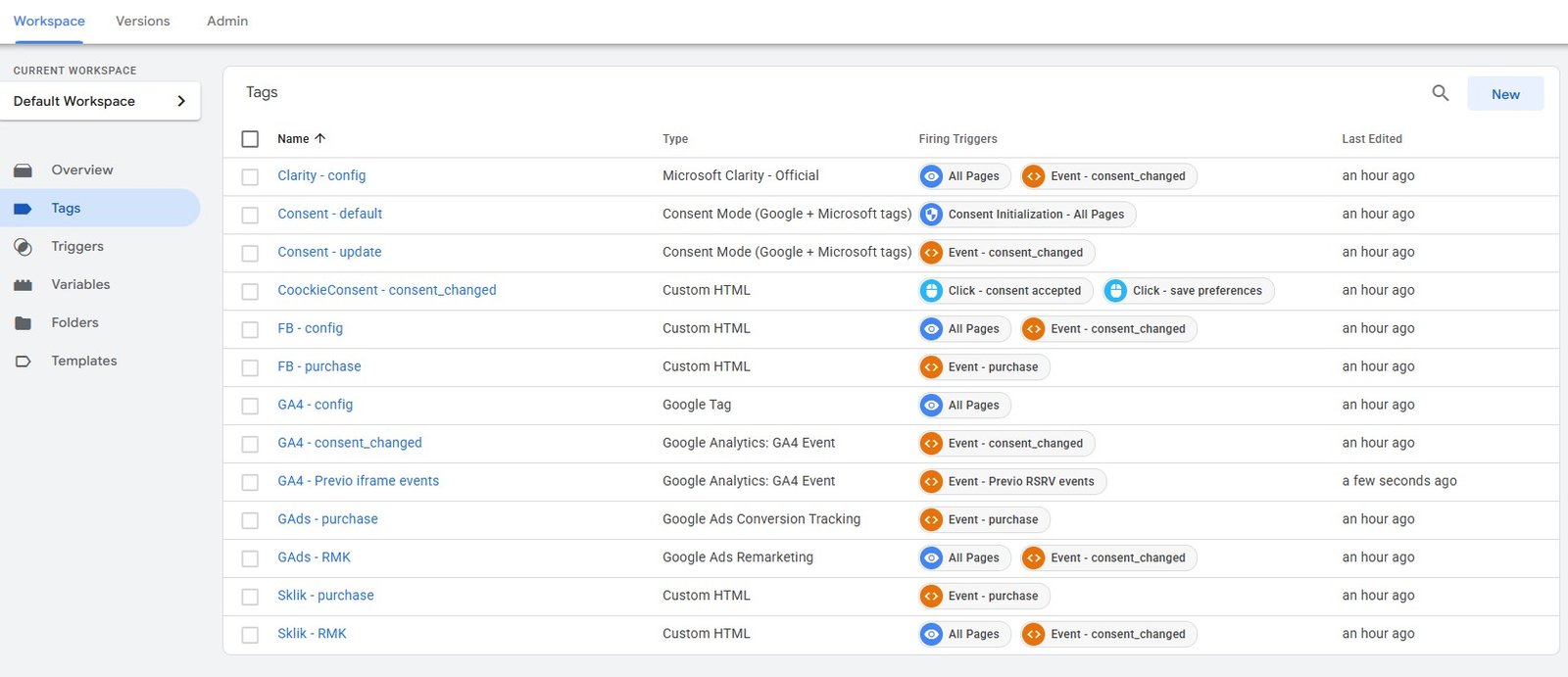
In the image below, you can see an example of how individual systems are integrated in Google Tag Manager, using the events sent from the Previo booking form. You’ll also find an example of the tracking integration for a GA4 event.
4. Quick setup: Importing the GTM JSON file
The fastest way: You can import everything I’m mentioning here today into your own GTM account and start using it within 5 minutes with a few minor tweaks.
Note: The container you’ll receive from me is universal, so it obviously doesn’t include IDs for other accounts—you’ll need to fill those in yourself.
Interested in a tag template you can import into your GTM project? Drop me a line and I’ll be happy to email it to you. It also includes tags for managing consent, which you can use as a starting point for your own user cookie consent, see the article.